
Batch Converting 10,000 Photos Without Losing Your Mind
Manually converting images - exporting, choosing formats, adjusting quality - is fine for a handful of files. Once you get past around 50 images the process becomes tedious and error-prone, and automation starts to pay off.
Running the same task on 10,000 images by hand would consume an entire workday and almost guarantees human error. The tools below handle it far more efficiently. For small batches of under 20 files, a browser-based converter such as ImageConverter is usually simpler than setting up a command-line pipeline.
When Is The Right Time To Automate Image Conversion?
The need for high-volume conversion is a frequent reality in professional workflows. You might receive thousands of HEIC files from a mobile photoshoot that must be converted to JPEG on a tight deadline. Alternatively, a company might migrate its web assets to WebP to improve site performance, requiring the conversion of tens of thousands of product images. Whether you are preparing thousands of shots for a print house or updating a digital library, these tasks are standard requirements for modern content management.
If we estimate that exporting, renaming, and saving a single image takes 20 seconds, a batch of 100 files requires over half an hour of focused effort. At 500 files, the task takes nearly three hours. Once you reach 1,000 images, it becomes a full day of repetitive labor.
Command-Line Tools for Batch Conversion
For users comfortable with a terminal, command-line tools offer the most efficient and flexible methods for batch image processing. Three specific utilities dominate this space.
ImageMagick
ImageMagick is the industry standard for general-purpose image manipulation. Operating since 1990 and compatible with almost every platform, it can handle nearly any format conversion imaginable. Converting an entire folder of JPEGs to WebP requires only a single command:
magick mogrify -format webp -quality 80 *.jpg
This simple instruction processes every JPEG in the directory at quality 80. While the task might take 20 minutes for 10,000 files depending on hardware, the tool can be refined to resize images, strip metadata, or adjust compression levels simultaneously.
libvips
libvips is the preferred alternative when processing speed and memory efficiency are the primary concerns. It is significantly faster than ImageMagick and utilizes far less RAM, which is critical when handling thousands of high-resolution files. While its syntax is slightly more complex, the performance gains are substantial:
for f in *.jpg; do vipsthumbnail "$f" -o "${f%.jpg}.webp[Q=80]"; done
In benchmarks involving several thousand 12-megapixel images, libvips typically finishes in a fraction of the time required by other tools. For recurring tasks or massive datasets, these efficiency gains are indispensable.
sips
sips is a macOS-exclusive utility that is pre-installed on every system, requiring no additional setup. It handles basic conversions reliably using Apple’s native imaging frameworks:
for f in *.heic; do sips -s format jpeg "$f" --out "${f%.heic}.jpg"; done
While it lacks the extensive format support and extreme speed of its competitors, it is a highly convenient option for Mac users who need to convert standard formats like HEIC to JPEG without installing third-party software.
Common Pitfalls of Batch Conversion
Batch conversion can fail in ways that are not immediately obvious, potentially compromising thousands of files before the errors are detected. These are the common causes of batch conversion failures:
Metadata stripping
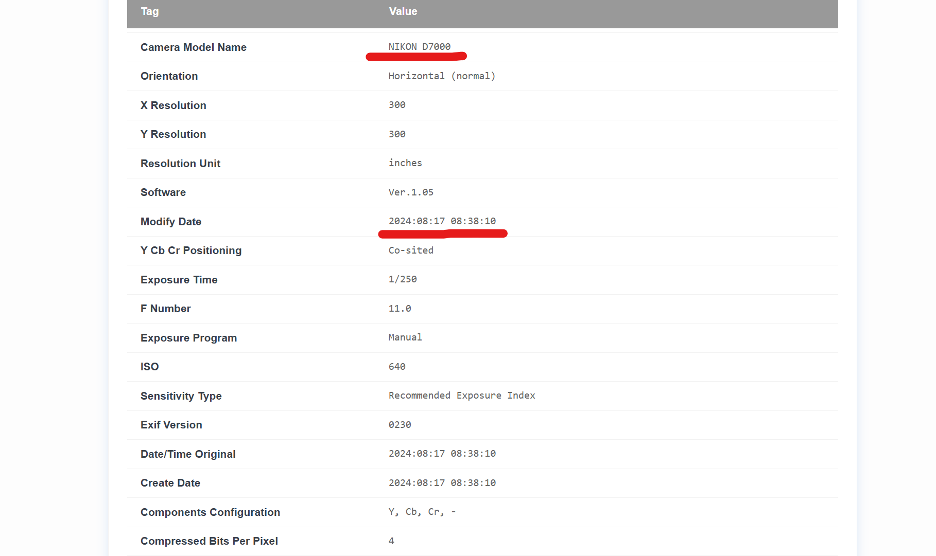
Many command-line examples include flags like -strip, which removes all EXIF data, including camera settings, GPS coordinates, and copyright notices. Because metadata removal is irreversible, you should verify your tool's default behavior before processing large batches. If preserving timestamps or ownership information is required, ensure your command or GUI settings are configured to retain that data.
Color Profile Stripping
Images often undergo noticeable color shifts if the ICC profile is dropped during conversion. This is particularly problematic for print work, where the difference between color spaces is glaring. In ImageMagick, use -profile flags to manage these transitions explicitly; in GUI tools, ensure the "preserve color profile" option is selected to maintain visual consistency across different displays and physical media.
The lossy-to-lossy trap
Converting between two lossy formats, such as JPEG to WebP, involves compressing data that has already been degraded. Each generation of encoding introduces new artifacts, meaning a high-quality output setting on the second pass may still result in poor visual fidelity. Always convert from the highest-quality source available, such as a RAW or PNG file. If you must use a lossy source, use a generous quality setting to minimize further degradation.
Error Logging
In a batch of 10,000 files, some will inevitably fail due to corruption, unsupported color spaces, or botched downloads. Most tools will skip these files and continue the process, meaning you may lose data without realizing it if you aren't capturing the output.
Naming Conventions and Organization Checklist
Maintaining a clear and consistent naming convention is crucial when batch converting large numbers of images. This helps in tracking the source files, as well as making sure the converted files are identifiable and organized. Here are some best practices to follow:
-
Retain original filenames. Keep the base filename identical and only change the extension (e.g.,
IMG_4523.jpgtoIMG_4523.webp). Avoid renaming files during the conversion process to maintain a clear link between the source and the output. -
Use a dedicated output directory. Never overwrite your original files. Establish a clear folder structure, such as
/originals/and/converted/, to keep the two sets entirely separate. - Mirror the subfolder hierarchy. If your source images are organized into subfolders, ensure your output directory reflects that same structure to make locating specific files easier.
-
Separate different output formats. If you are generating multiple formats, create specific subdirectories for each, such as
/converted/webp/and/converted/tiff/. This prevents a single folder from becoming cluttered with thousands of mixed file types.