
The Ultimate Guide to Image Conversion
Not having the correct image format for a task can result in everything from minor annoyances to serious business complications. Many websites accept only certain types of image formats, and those websites range from social media platforms to identity verification sites required for banking.
Unfortunately, converting an image from one format into another on your computer often requires specialized paid software. Even if the software is free, the available tools are typically complicated to learn, which is a ton of hassle to go through just to convert an image!
Another reason for requiring image format conversion is that sometimes your computer simply can't read an image produced on a different operating system. For example, certain Apple formats can't be viewed on Windows computers without special software.
That's why we developed ImageConverter.com, which converts images into all the most common formats.
Below, we explain how to use the tool, as well as what the different image formats are and why they exist.
Why So Many Image Formats Exist
When you see all the many image formats around, you might wonder, "Why are there so many formats in the first place?"
The answer is a combination of:
- New technological needs
- Competition
- Legal reasons (such as patents and royalties)
Literally dozens of image formats exist but very few of them are supported on modern web browsers, so you won't typically hear about them.
For example, camera manufacturers typically have their own "RAW" image formats, which are essentially just containers for sensor data and details about the camera and its settings when the picture was taken. Special software is typically required to read such formats and convert them to more easily consumable image formats such as JPEG or PNG.
Some common RAW format file extensions include: .dng, .drf, .eip, .erf, .fff, .gpr, .iiq, .k25, .kdc, and many others!
In addition to the RAW formats, other lesser-known formats exist, such as the ".drawing" (or ".drawn" and ".drw") format for preserving drawn images. A format called the "FLIF" also exists, which stands for "Free Lossless Image Format." The format was announced in 2015 and supposedly outperforms PNGs and JPEG formats, but it hasn't gained wide support.
As for the popular web formats—JPEG, PNG, GIF, and WebP—their history is all intertwined.
However, we can't discuss the popular web formats without also discussing BMP:
BMP is a format developed by Microsoft and released in 1987 that stores images incredibly inefficiently. It literally means a "map of bits," because it stores every single image pixel as a bit or group of bits. More recent formats have better ways to store similar pixels.
BMPs were developed before the Internet, which has been the primary driver for new image types. Basically, BMPs are huge. In the early days of the internet and email when bandwidth was still extremely expensive, people had to find a way to save that bandwidth.
That need led to the first compressed image type, the GIF, although that compression came at quite a sacrifice of image quality. Still, for the purposes of sending images by email, it was fantastic.
Unfortunately, the team that created the GIF inadvertently used a patented algorithm, which led to them almost being sued. The company eventually agreed to charge royalties to other companies that wanted to use GIFs, which led to one of the internet's early revolts.
The revolt resulted in the PNG (Portable Network Graphics) format being developed in only seven days. PNGs are a non-patented image format that retains excellent quality and is far smaller than BMPs.
A few years later, the JPEG (or JPG for early Windows computers that only supported three-letter file extensions) emerged. It had far superior compression capabilities while still maintaining acceptable levels of quality. As a result, the JPEG became the ubiquitous image format on the internet and is still widely used today, especially in digital cameras.
WebP is the most recent major image format to try and compress images even further. Unfortunately, not all websites support uploading WebP images, requiring you to convert them using an image converter.
Apple also has a proprietary image format called HEIC that can store not only images but also groups of images (such as for the "Live" shots taken with an iPhone).
Unfortunately, these images are proprietary and require special software to be viewed on non-Apple devices. The image format also has patents that make it costly for other manufacturers to incorporate it into their platforms.
The HEIC format isn't a web format. However, because it's the format used on Apple devices, it's quite common that people need to convert it to one of the other web-friendly image formats.
Why Is Image Conversion Important?
Image formats aren't universal. Different devices, browsers, platforms, and workflows require different formats. Converting images ensures compatibility.
Here are the core reasons image conversion matters:
Compatibility Across Platforms and Devices
Not all formats are supported everywhere. For example, WebP and AVIF offer better compression, but not all browsers support these formats, forcing people to convert them to widely used formats such as JPEG or PNG.
Converting images ensures they can be displayed or processed in the intended environment.
File Size Optimization
Different formats use different compression methods.
Converting a PNG to WebP or AVIF can reduce file size significantly while maintaining visual quality. Smaller files improve:
- Website load speed
- Mobile performance
- Bandwidth usage
- SEO rankings
In e-commerce or content-heavy platforms, faster load times can directly impact conversions.
Quality Control and Compression Strategy
Each format handles compression differently:
- JPEG uses lossy compression and is excellent for photographs.
- PNG supports lossless compression and transparency. It's great for logos and design materials.
- WebP and AVIF offer both lossy and lossless models, and are called Next-Gen formats because they improve on PNG and JPEG formats.
- TIFF is often used for high-quality print workflows.
Image conversion allows you to choose the correct format based on your use case.
Transparency and Special Features
Some formats support features that others don't:
- PNG and WebP support transparency. JPEG doesn't.
- GIF and WebP support animation.
- The JPEG format sacrifices quality the more it's compressed.
- HEIC supports high compression efficiency for photos but has license fees associated with it.
Print vs. Web Requirements
Print workflows often require formats like TIFF or high-resolution JPEG in specific color profiles (CMYK, which stands for Cyan, Magenta, Yellow, and Black, and is the color profile for print images). Web requires RGB (Red, Green, Blue, the color profile for digital images) and compressed formats.
Image conversion ensures assets meet the technical requirements of their final medium.
Long-Term Archiving
Some formats are more suitable for archival storage due to their lossless characteristics.
Basically, image conversion is essential for performance, compatibility, and quality management. In web development, e-commerce, and content platforms, it directly impacts user experience and website speed.
No Software Needed for Highly Secure Image Conversion
Other image conversion tools also exist, but these tools typically send your file to a server somewhere to convert your image. That server might be in the United States or in Russia. You don't know. It might be a secure server where files are encrypted, or a completely insecure server running in someone's basement.
None of the above is a joke. Unless you're dealing with a well-known and established business, anyone can start a website anywhere, and the above scenarios are all entirely possible.
That's a risk for all images, but especially when uploading sensitive documents such as ID and passport images required for identity verification. No guarantee exists that your passport or ID image won't be stored indefinitely on some insecure server, potentially leading to identity fraud in the future.
In other cases, you might just not want certain images to be shared with others, such as personal family photos, or photos with your children's faces on them.
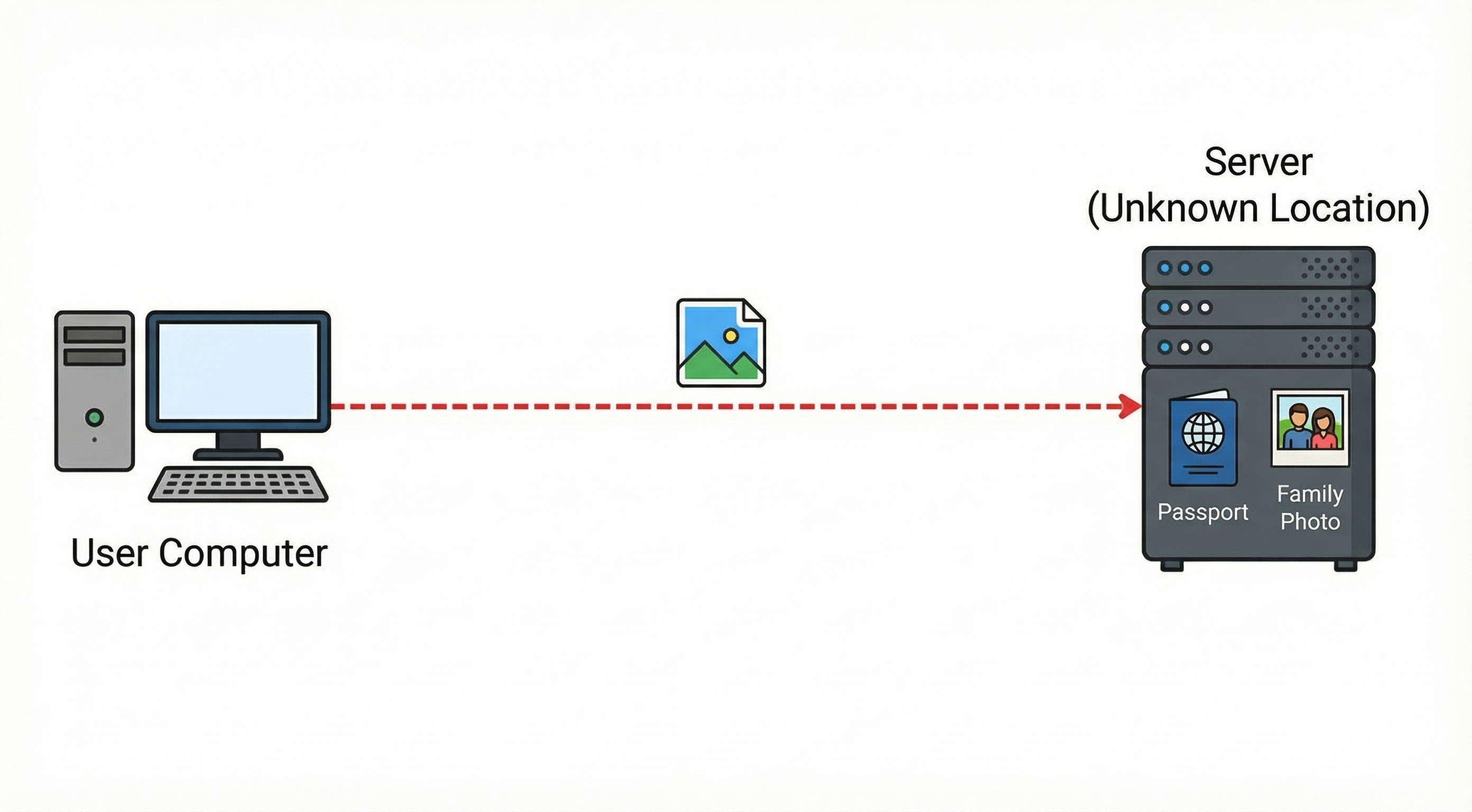
That's why we developed ImageConverter.com to run the entire conversion in your browser, meaning the image never leaves your computer.
This is only possible because of recent advances in technology, which allow sophisticated code to run directly in your browser, doing away with the need for server communication altogether.
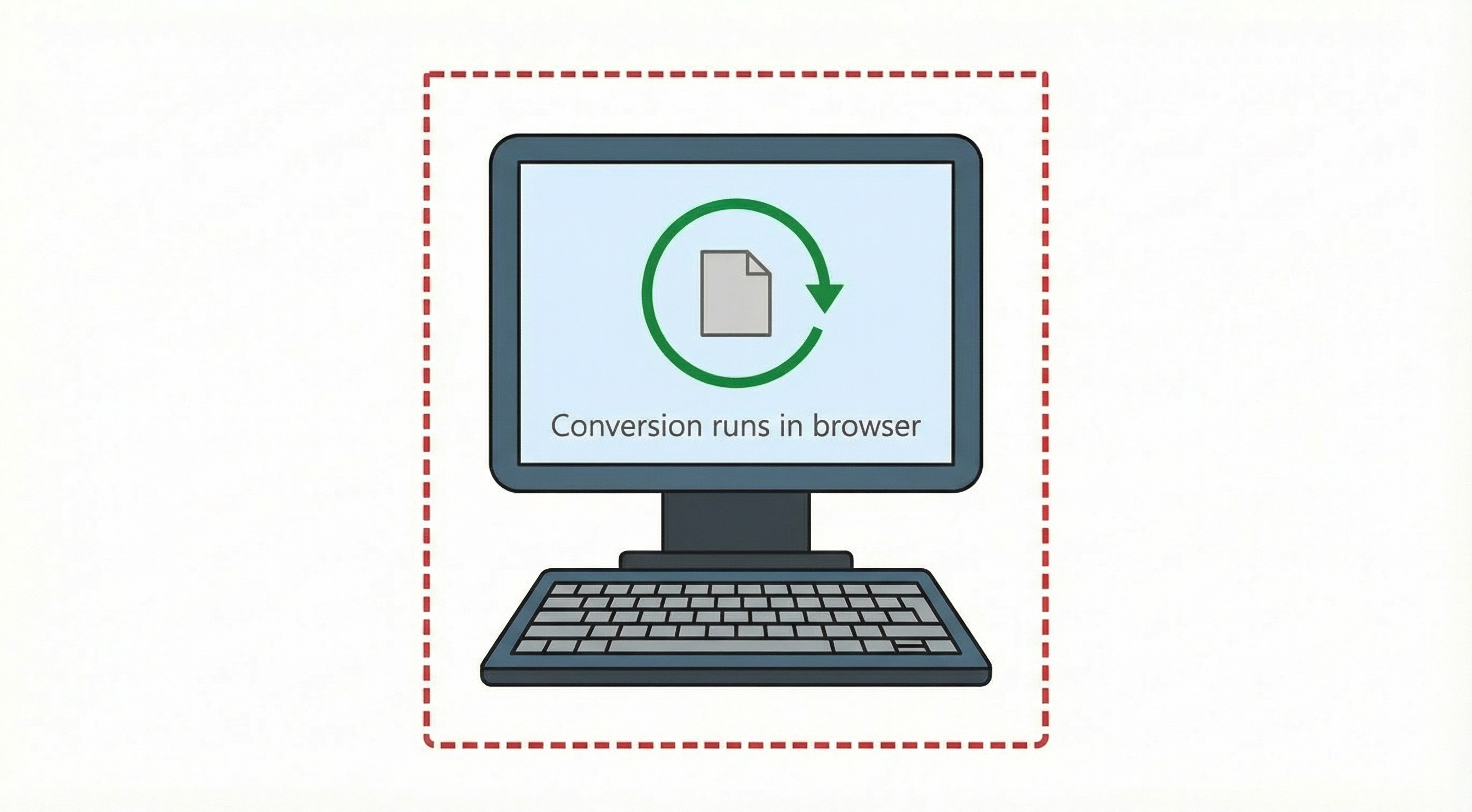
When using ImageConverter.com, your images are perfectly secure because they never leave your computer.
Step-by-Step Guide: How to Use ImageConverter.com
The first step is to select the source image from your device. If you're on a mobile phone or tablet, click the "Select Files" button. If you're on a device that uses a mouse or trackpad, such as a laptop or desktop computer, you can drag images directly onto the conversion box.
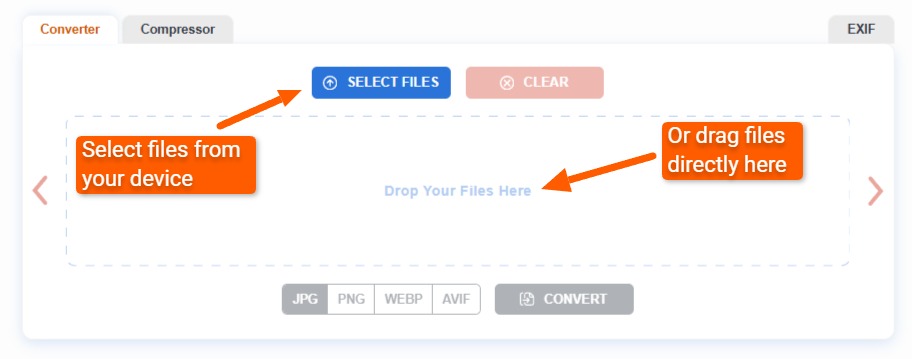
ImageConverter.com automatically detects the source format of your selected image. For example, in the screenshot below, we chose a JPEG image, which is why the "JPG" button in the "Target Format" section is grayed out. (JPEG and JPG are the same format. At the end of this guide, we explain why two names exist for it.)
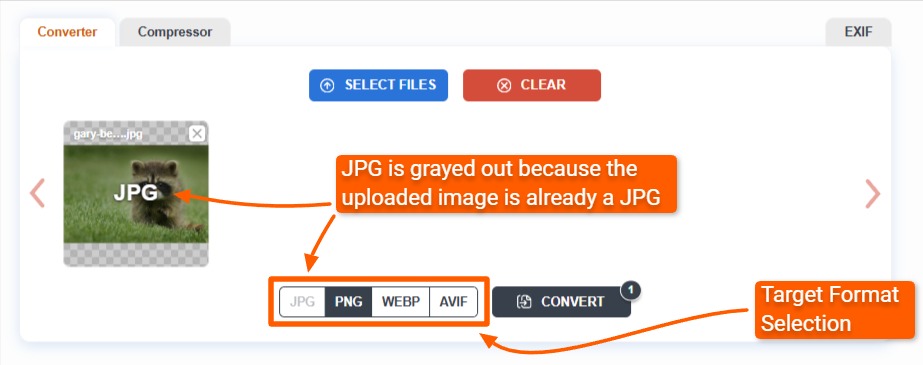
If you upload multiple images with different formats, then you can select any target format as the final format for all images.
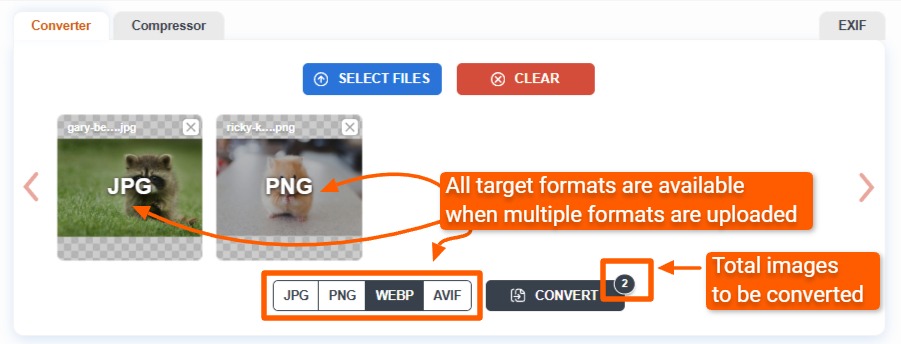
You can convert as many images at a time as you want. However, keep in mind that the speed of conversion depends on:
- Your device's capabilities
- The size of the image being converted
Because all conversions occur directly on your device, the amount of memory and processing power it has determines how fast the conversions will take. If you're on a mobile device and need to convert very large images, we recommend doing a maximum of only two or three at a time. On a desktop computer with more memory and processing power, you can do more.
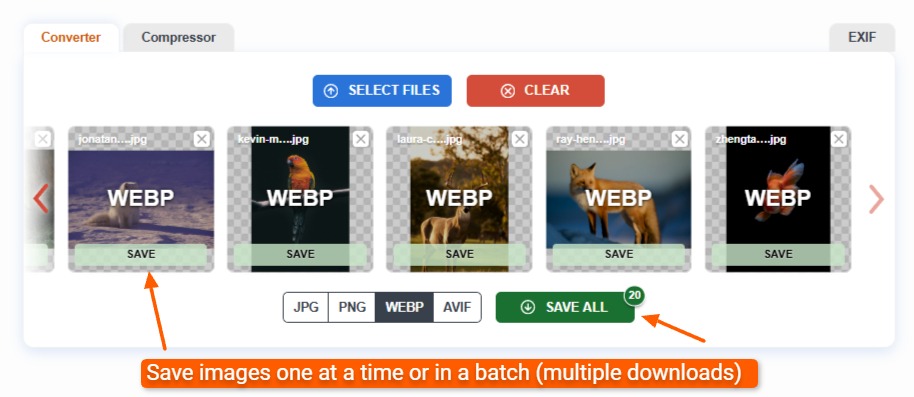
When the conversion is complete, the "Convert" button changes to a "Save All" button, which lets you save all images with a single click. Each image also has a green "Save" button that you can click to save each image individually.
What Image Types Does ImageConverter.com Convert?
ImageConverter.com supports outputs in the most common formats (JPEG, PNG, WebP, and AVIF) and a much wider variety of input formats.
Let's look at these formats and what they are:
HEIF (High Efficiency Image File Format)
HEIF is a high-efficiency "container" format that can store various types of multimedia files, such as video, audio, and images. You can think of it as a digital envelope that can hold one or more images, along with extra information, such as the photo's location or even a short video clip.
For example, an HEIF container can store all the edits associated with an image, along with the unedited image. This is one of the ways smartphone apps can let you restore an image to the original even months after editing it.
HEIF can also store image sequences, also known as "Live" images on an iPhone.
All major operating systems support HEIF images. However, older operating systems, such as Windows 10, might need additional software to view the image.
No browser can display them natively, meaning that you must convert them to one of the browser-friendly formats (JPEG, PNG, WebP, etc.) to view them on a web page.
HEIC (High Efficiency Image Container)
HEIC is Apple's version of the HEIF image format and has become the standard image format for all Apple devices.
Unlike the HEIF container, which can store images of different formats, the HEIC format only stores images encoded using the HEVC (High Efficiency Video Coding) codec.
A "codec," short for "coder/decoder," is software for digitizing multimedia signals. Codecs encode audio, video, and images into digital data, and also decode it for viewing and listening.
While HEIC files are incredibly efficient, they're not compatible with Windows machines.
Companies must also pay a license fee for implementing HEIC, making it less popular than formats using open standards.
Many websites don't accept uploading an HEIC format, which is why it's necessary to use a tool such as ImageConverter.com to convert HEIC to JPEG or another widely adopted web format.
JPG/JPEG (Joint Photographic Experts Group)
JPEG (or JPG) is the most widely used format for digital photos. The terms JPG and JPEG are interchangeable. The three-letter version exists because older Windows computers required three-letter file extensions.
The format was created by the Joint Photographic Experts Group and released in 1992.
The major breakthrough of JPEG images is that the format allowed images to be significantly compressed without noticeable differences in image quality. It quickly became the most popular format for sharing images online and the default format for many digital cameras.
Despite its age, the JPEG format remains a mainstay of the modern web.
Unfortunately, JPEGs don't support transparency, and some permanent loss of detail does occur at higher compression levels.
GIF (Graphics Interchange Format)
The GIF (pronounced "jif") emerged in 1987, four years before the internet, at a time when users paid for bandwidth per hour. Transferring large files by email chewed up that bandwidth, and computers of the day strained to show large images because of memory constraints.
CompuServe was an internet bandwidth provider and wanted to solve this problem for users by creating an image format that supported compression.
The Graphics Interchange Format file was born.
Unfortunately, CompuServe had inadvertently used a patented compression algorithm, which ended up being both the impetus for the PNG format (discussed below) and the beginning of the end for the GIF's immense popularity.
However, GIFs still dominate the internet in the domain of animated images. The patents used in GIFs expired in 2003 and 2004.
PNG (Portable Network Graphics)
The PNG format is a "lossless" compression format, meaning it doesn't lose any image data when compressing it. This contrasts with the JPEG format, which uses a "lossy" compression method.
PNG's history is an exciting one. It originated in 1995 as a direct response to a sudden legal situation regarding GIFs.
CompuServe had created the GIF format but inadvertently used patented material from Unisys to do it. On December 28, 1994, Unisys and CompuServe reached an agreement that they would charge royalties for any use of GIFs in commercial products.
The internet revolted.
In response, a working group, led by developer Thomas Boutell, was formed to create a replacement format that was better, more extensible, and completely free of patent issues.
The result was the PNG format, which supports transparency and also maintains excellent detail in compressed images.
PNGs are widely used for logos and design work because they maintain sharp edges and high contrast in images, which JPEGs struggle with.
PNGs don't support animation, unlike GIFs.
WebP
WebP was developed by Google and first announced in 2010. It was based on the technology Google acquired when it bought a company called On2 Technologies.
WebP images support both "lossy" and "lossless" compression.
Google's goal was to create a single format that could replace JPEG, PNG, and GIF. Over the next decade, Google added features like transparency and animation. Today, all major browsers support WebP images.
Some "Animated WebP" generators exist online, but GIFs dominate the domain of animated images by far.
BMP (Bitmap Image File)
BMP is an uncompressed image format that maps out every single pixel of an image individually, like a giant digital mosaic. Far more efficient ways now exist to store image data.
Microsoft developed the BMP format in 1987 and built it into every Windows operating system. The format became the default format used in Microsoft's Paint program.
Unfortunately, BMP files are massive, and the JPEG soon dethroned BMP as the preferred image format for the web and photos. PNGs superseded the BMP because they maintained high quality at a much smaller file size.
You'll find BMPs today mostly from legacy applications and software.
BMP files also lack other essential features for professional use, such as the ability to store metadata or to compress images efficiently.
TIF/TIFF (Tagged Image File Format)
TIFF is a high-quality "container" format used primarily in professional industries where image data must remain perfectly intact. It's mainly used in professional printing, publishing, and medical imaging. People use it whenever quality is more important than file size.
Unlike JPEGs, TIFFs don't produce "smudging" when storing massive amounts of detail.
Because they're containers, they can store multiple versions of the same image, such as including a thumbnail version.
TIFFs support compression, giving them an edge over BMP files, whose large size makes them harder to share and store.
AVIF (AV1 Image File Format)
AVIF is the newest major image format. It's already considered the most advanced way to store images because it offers the highest quality at the smallest possible file size.
AVIF was released in 2019 by the Alliance for Open Media, a group that includes tech giants like Google, Apple, Microsoft, and Netflix. It was created to solve the licensing problem of the HEIC format.
AVIF is open-source and royalty-free, meaning anyone can use it for free. It uses the compression technology from AV1, a modern video format designed for high-quality streaming.
ICO (Windows Icon Format)
An ICO file is a specialized image format used specifically for desktop icons in Microsoft Windows. It was created to provide a way for the operating system to display small graphic symbols that represent folders, files, and programs. Initially, these files were very simple and low-resolution, but they have evolved over decades to support the high-definition, colorful icons seen in modern versions of Windows.
Every major operating system and browser supports ICO files.
You can upload any of the above image formats to ImageConverter.com and convert them to JPEG, PNG, WebP, or AVIF.
Summary
The world has many different image types, many of them developed to solve a problem that other types didn't solve. Despite each image format's usefulness, the amount of choice adds complexity for users when trying to do something simple like upload an image to a website.
Existing online conversion services typically lack the necessary security for converting images without sending them to an unknown server, and converting them on your local computer requires specialized software.
Now, with ImageConverter.com, you can convert images for free, and 100% securely inside your own browser.