
The Surprisingly Complicated World of Images in Email
Designers often face a frustrating problem when sending HTML emails. A clean, sharp image that looks perfect in Gmail or on an iPhone can suddenly look broken, blurry, or stretched when it arrives in an Outlook inbox. It might even show strange white gaps that were never part of the original design. These issues happen because Outlook handles images very differently than almost every other email app.
The root of the problem is that the Windows version of Outlook uses Microsoft Word to display your emails. Because Word was built to handle printed documents instead of modern web code, it often fails to understand how images should scale or sit on a page. To ensure your designs look good for everyone, you have to use specific tricks that account for this old-fashioned way of reading code.
Understanding Outlook Image Rendering
Outlook for Windows does not use a typical web browser to display your emails. It actually relies on the Microsoft Word rendering engine. This means the same software you use to type a basic document is responsible for interpreting your carefully coded HTML and images. This setup ignores most modern web standards, which often leads to unexpected display issues for your readers.
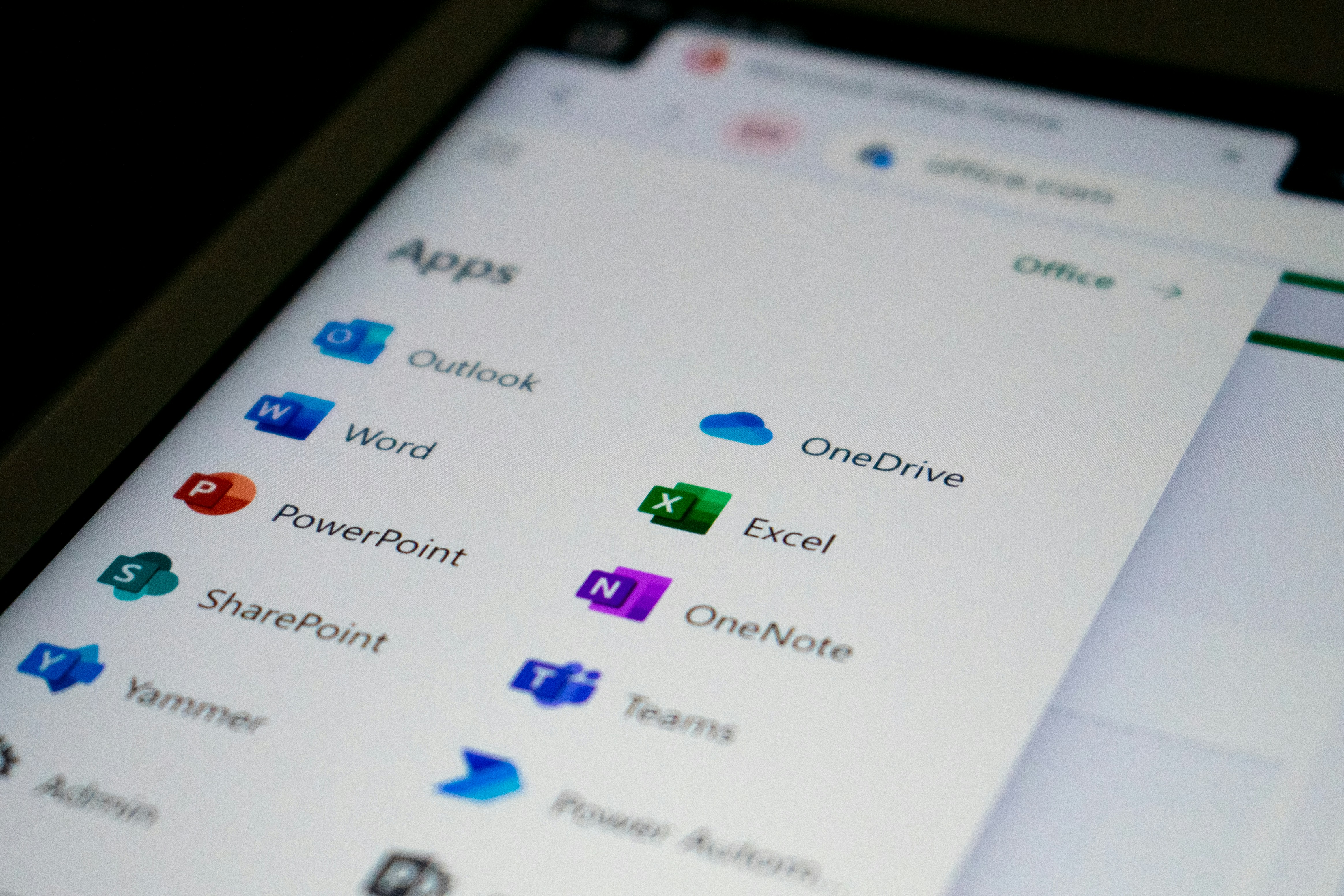
Microsoft adopted this system back in 2007 to ensure that an email looked identical whether you were writing it or reading it. While that was a practical goal at the time, it created a lasting headache for anyone designing for the modern web. Since Word was never intended to handle web code, it simply cannot recognize newer file formats or advanced styling.
The real-world impact is ever-present because Outlook is still the standard for most corporate offices. This engine lacks support for WebP files and ignores CSS background images entirely. Even SVG files, which are common in modern design, render so inconsistently that they are effectively useless for professional campaigns.
Every major platform has its own set of rules. Gmail tends to strip out CSS and re-hosts images on its own proxy servers. Meanwhile, Apple Mail is the most flexible and follows web standards quite well. These conflicting requirements mean that every image you create has to be optimized to survive several different types of technology at once.
The Formats That Actually Work
The list of formats that work reliably across all email clients is surprisingly short:
- JPEG: Remains the workhorse for photographs and complex images in email. Every email client on the planet can render a JPEG. The compression artifacts that make JPEG a compromise on the modern web are a non-issue in email, where images are typically viewed at smaller sizes and no one's concerned about the pixel quality of a newsletter.
- PNG: This is the go-to for logos, icons, screenshots, and anything with transparency or sharp edges. It's universally supported, lossless, and predictable. While file sizes are larger than JPEG for photographic content, PNG is often smaller for graphics with flat colors and text.
- GIF: While antiquated, this format still works everywhere and still supports animation. Its 256-color limit makes it the worst choice for photographs, but for simple animations and small graphics, it's the format that refuses to die. In email, its universal support and predictable behavior keep it relevant long after the web moved on.
Modern formats like WebP, AVIF, and HEIC are still unreliable across email clients. While you might see success with specific combinations, hoping for the best isn't a viable strategy for reaching thousands of subscribers. Until major players like Outlook and Gmail provide full, native support, save the advanced formats for your website and stick to proven standards for your email campaigns.
The Reality of Email Image Blocking
Email strategy must account for the fact that many clients block images by default. While Gmail uses proxy servers to display content, Outlook frequently requires manual approval to download pictures, and many corporate systems disable external assets entirely for security. Consequently, visual elements like headers and product photos often appear as empty boxes or broken icons upon the first opening.
This environment makes alt text a functional necessity rather than an optional accessibility feature. Every <img> tag needs a descriptive alt attribute to convey information when the graphic fails to load. A functional description ensures the recipient understands the message even if the visual remains hidden. Since some clients render this text using the styles defined in your CSS, it serves as a reliable placeholder that maintains the professional look of the layout.
The fundamental lesson here is to avoid placing critical information inside an image file. Key messages and calls to action must exist as live text to ensure they are readable regardless of client settings. In this context, images serve as a secondary layer of decoration while text provides the actual structural integrity of the communication.
Email Signature Specifications
Email signatures require strict technical constraints to ensure they load quickly and appear professional across all clients. Use the following standards for your signature assets:
- Dimensions: Limit image width to 300-400 pixels to fit desktop reading panes and mobile screens. Keep height proportional, ideally under 150 pixels, to prevent the signature from dominating the message body.
- File Size: Keep each image under 30KB. Since signatures are included in every reply, small file sizes prevent email threads from bloating into massive data transfers over long conversations.
- Format Choice: Select PNG for logos and text-heavy graphics to maintain sharp edges. Use JPEG only for headshots or photographs, applying aggressive compression since high-fidelity detail is unnecessary at these sizes.

Consolidating multiple signature elements into a single image usually provides more consistent rendering than using complex HTML tables. While this prevents individual elements from being separately clickable, it greatly reduces loading requests and lowers the risk of the layout breaking in strict email environments.
Inline vs. Attached Images
The primary methods for including images in an email both present specific technical challenges:
Linked images
These are hosted on a server and referenced by a URL, which keeps the initial email size small and allows assets to load on demand. However, they require an active internet connection to display and are the most likely to be blocked by privacy settings because they enable tracking. If the hosted file is moved or deleted, the image in the email breaks permanently.
Linked images remain the standard for newsletters and marketing, provided the layout is designed to handle image-blocking through descriptive alt text and a web-view link.
Embedded images
These assets are attached directly to the email and referenced with a Content-ID, allowing them to display without a server connection. The downside is that they increase the total file size of the message and can occasionally trigger spam filters. Some email clients also display these images as separate attachments at the bottom of the thread, which can clutter the interface.
For email signatures, embedded images are generally more effective because they offer reliable display for small files and do not rely on external hosting. While some clients may still treat these as attachments, the trade-off is usually worth the increased consistency.
Responsive Images in Email
On the web, responsive images are a solved problem. You have
srcset, <picture>, CSS
object-fit, media queries - a whole toolkit for any
screen.
In email, you have almost none of that. Outlook ignores CSS media
queries. Gmail strips <style> tags from the
<head>. Many clients ignore max-width on
images. Some override your explicit width and height attributes with
their own ideas about sizing.
The approach that actually works, if you can call it that, is
defensive. Set explicit width and height
attributes on your <img> tags in the HTML. Add an
inline style with max-width: 100% so the image scales down
on small screens in clients that respect it. Accept that some clients
will show your image at full size regardless and design accordingly - if
a 600px wide image looks fine on mobile at 600px, you won't have a
problem when a client refuses to scale it.
For newsletter images, 600px wide is the standard maximum. Not because screens aren't wider, but because most email clients render the message in a pane that's roughly 600-700px wide. Design for 600px, and you'll fit everywhere that matters.
Practical Recommendations for Newsletters and Marketing
Use the following specifications to ensure your email images are optimized for both performance and visual clarity across all major clients.
| Image Type | Dimensions | Quality / Size | Key Requirement |
|---|---|---|---|
| Hero Images | 600px wide | 70-80 Quality (<100KB) | Layout must be functional if blocked. |
| Product Photos | 250-300px wide | 70 Quality (<50KB) | Medium quality is indistinguishable at email sizes. |
Practical Takeaways
Email rendering relies on legacy engines that were never built for modern web standards, so working within those constraints is more effective than fighting them. Stick to JPEG, PNG, and GIF, test in Outlook, keep file sizes small, and never trap critical text inside an image.